# generaltranslation: General Translation Core SDK: Quickstart
URL: https://generaltranslation.com/en-US/docs/core/quickstart.mdx
---
title: Quickstart
description: Quickstart guide for the generaltranslation library
---
## Overview
This guide will walk you through the basics of using the generaltranslation library.
We will cover string translation and file translation.
---
## Translate your first string
### 1. Get your environment variables
The very first step is to create a `GT_PROJECT_ID` and `GT_API_KEY`.
This is completely free, and will give you access to the translation services.
Navigate to the [`API Keys` page](https://dash.generaltranslation.com/api-keys) click `Create API Key`.
Choose a name for your API key, and click `Create`.
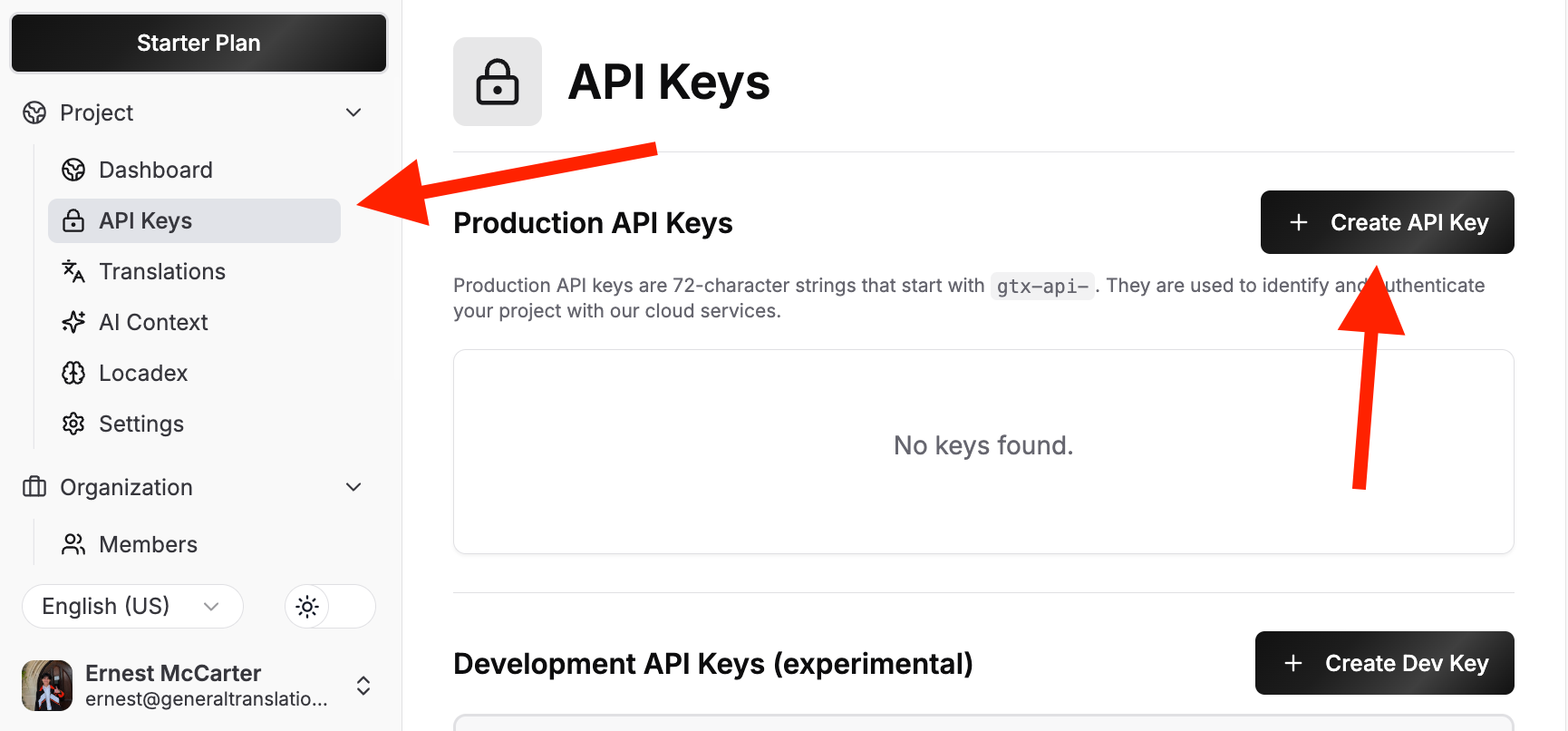
General Translation offers very high free rate limits to support personal projects, solo developers, and the community.
### 2. Initialize the GT class
Initialize the [`GT`](/docs/core/class/constructor) class and securely pass your `GT_PROJECT_ID` and `GT_API_KEY`.
```typescript title="src/index.ts"
import { GT } from 'generaltranslation';
const gt = new GT({
projectId: 'your-project-id',
apiKey: 'your-api-key',
});
```
### 3. Translate your first string
Call the [`translate`](/docs/core/class/methods/translation/translate) method to translate your string.
Pass the string you want to translate, and the target locale.
```typescript title="src/index.ts"
const result = await gt.translate('Hello, world!', 'es'); // Spanish
if (result.success) {
console.log(result.translation); // "¡Hola, mundo!"
} else {
console.error(`Translation failed: ${result.error}`);
}
```
If you want to look up a locale code, check out the [supported locales](/docs/platform/supported-locales) page.
---
## Translate your first file
This guide assumes you already have followed steps 1 and 2 of the [Translate
your first string](/docs/core/quickstart#translate-your-first-string) guide
and have a `GT_PROJECT_ID`, `GT_API_KEY`, and a `GT` class instance.
Let's say you wanted to translate a file called `en.json` to Spanish.
```json title="en.json"
{
"hello": "Hello",
"world": "World"
}
```
In order to translate a file, you need to follow these four steps:
1. Upload the file
2. Enqueue the file for translation
3. Check on the file status (optional)
4. Download the translated file.
#### Why not just one call? Typically, people will want to translate many
files at once. By breaking these into four clear steps, it gives users much
more flexibility in how they can use the API.
### 1. Upload the file
Uploading files returns a list of file references with the [`uploadSourceFiles`](/docs/core/class/methods/translation/upload-source-files) method.
This allows you to later check the enqueue the file for translation, check the status of the file, and download the translated file.
```typescript title="src/index.ts"
import fs from 'fs';
import path from 'path';
import { FileUpload } from 'generaltranslation';
// (i) Read the content of a file
const filePath = path.join(process.cwd(), 'en.json');
const fileContents = fs.readFileSync(filePath, 'utf8');
// (ii) Format the file contents
const fileUpload: FileUpload = {
content: fileContents,
fileName: filePath,
fileFormat: 'JSON',
locale: 'en',
};
const files = [ { source: fileUpload } ];
// (iii) Upload the file
const { uploadedFiles } = await gt.uploadSourceFiles(
files,
{
sourceLocale: 'en'
}
);
```
This will return a list of file references:
```ts title="Output"
[
{
fileId: '41726368696562616c64204d6342616c64792074686973206973206a6f6b652e',
versionId: '427269616e204c6f75206d6f7265206c696b65204c696f6e2042726f20686121',
branchId: '123456789',
fileName: '/Users/demo/en.json',
fileFormat: 'JSON'
}
]
```
### 2. Enqueue the file for translation
The next step is to select the target locales for the translation with the [`enqueueFiles`](/docs/core/class/methods/translation/enqueue-files) method.
In this case, we will translate to Spanish.
```typescript title="src/index.ts"
const fileUploadRef = {
fileId: uploadedFiles[0].fileId,
versionId: uploadedFiles[0].versionId,
branchId: uploadedFiles[0].branchId,
fileName: uploadedFiles[0].fileName,
fileFormat: uploadedFiles[0].fileFormat,
};
const enqueueResult = await gt.enqueueFiles(
[fileUploadRef],
{
sourceLocale: 'en',
targetLocales: ['es'],
});
```
This will return a result with job information:
```ts title="Output"
{
jobId: 'job-123456',
locales: [ 'es' ],
message: 'Creating 1 translation(s).'
}
```
### 3. Check on the file status
Okay, now that the file is uploaded, when do we know it's ready for download?
We can use the [`queryFileData`](/docs/core/class/methods/translation/query-file-data) method to check on the file status.
```typescript title="src/index.ts"
const { fileId, versionId, branchId } = uploadedFiles[0];
const status = await gt.queryFileData({
translatedFiles: [{
fileId,
versionId,
branchId,
locale: 'es'
}]
});
```
If the file is still being translated, `completedAt` will be `null`. When complete, it will contain a timestamp.
```ts title="Output"
{
translatedFiles: [
{
fileId: '41726368696562616c64204d6342616c64792074686973206973206a6f6b652e',
versionId: '427269616e204c6f75206d6f7265206c696b65204c696f6e2042726f20686121',
branchId: '123456789',
locale: 'es',
completedAt: '2024-01-15T12:00:00Z',
...
}
]
}
```
### 4. Download the translated file
Finally, we can download the translated file with the [`downloadFile`](/docs/core/class/methods/translation/download-file) method.
```typescript title="src/index.ts"
const { fileId, branchId } = uploadedFiles[0];
const content = await gt.downloadFile({
fileId,
branchId,
locale: 'es',
});
```
This will return the translated file content:
```ts title="Output"
{
"hello": "Hola",
"world": "Mundo"
}
```